Make AI work so you can dream

This is a long article about how I use Kiro IDE as a personal assistant. If you want to try this but can't be bothered to read it: Get Kiro IDE (or any 'developer' AI platform with integrated chat), write "help me do this" in the chat, cut and paste the whole article, and press send.
Here I am at the end of a rough week, running on bad sleep. Really bad. Too scared to check my sleep score. I am overworked, emotionally fraught.
Normally, in this state, I am not productive. Today: I did a financial forecast (I hate doing financial forecasts). I distilled a hellish, labyrinthine email thread, with 15 people asking for 20 different things, and a whole bunch of corporate bullshit, into a clear plan. I parried an awkward request from an awkward colleague. I secured a meeting with someone I secretly admire and desperately want to work with. I wrote the order of service for a funeral.
I was able to do all of this because of my AI co-pilot, my second brain. The second brain handles the dumpster fire of notes, emails, docs, data, dashboards and Slack messages, so the first brain can focus on the important things.
This is AI for non-AI people. It works because it has all of my context. First thing in the morning, instead of staring at my inbox, I open Kiro and say “what’s my to-do list for today?”. If the first thing is the financial forecast, I say “here’s what I know about this project, here’s a bunch of data, here’s a couple of solid forecasts done by other people for other projects. Take all of that and draft me a financial forecast”. It doesn’t make decisions, and it needs tweaking at the end, but it gives me a hell of a head start.
To make this work, I had to tell it everything: my job, my projects, strengths, weakness, org politics, people to impress, people to ignore, my redundancy survivor’s guilt, my energy levels. It needs to know me personally. It knows, for example, that I am forever making spectacular plans that never happen. It helps me focus. It pulls the precise information I need, exactly when I need it. It will tell me when a particular task is important, because it’s relevant to the ambitions I’ve shared. That other thing? It’s noise, ignore it. Also the funeral is next week, finish the order of service today.
The more you tell it, the better it gets. I tell it almost everything. The real brain can dream. The second brain makes it happen.
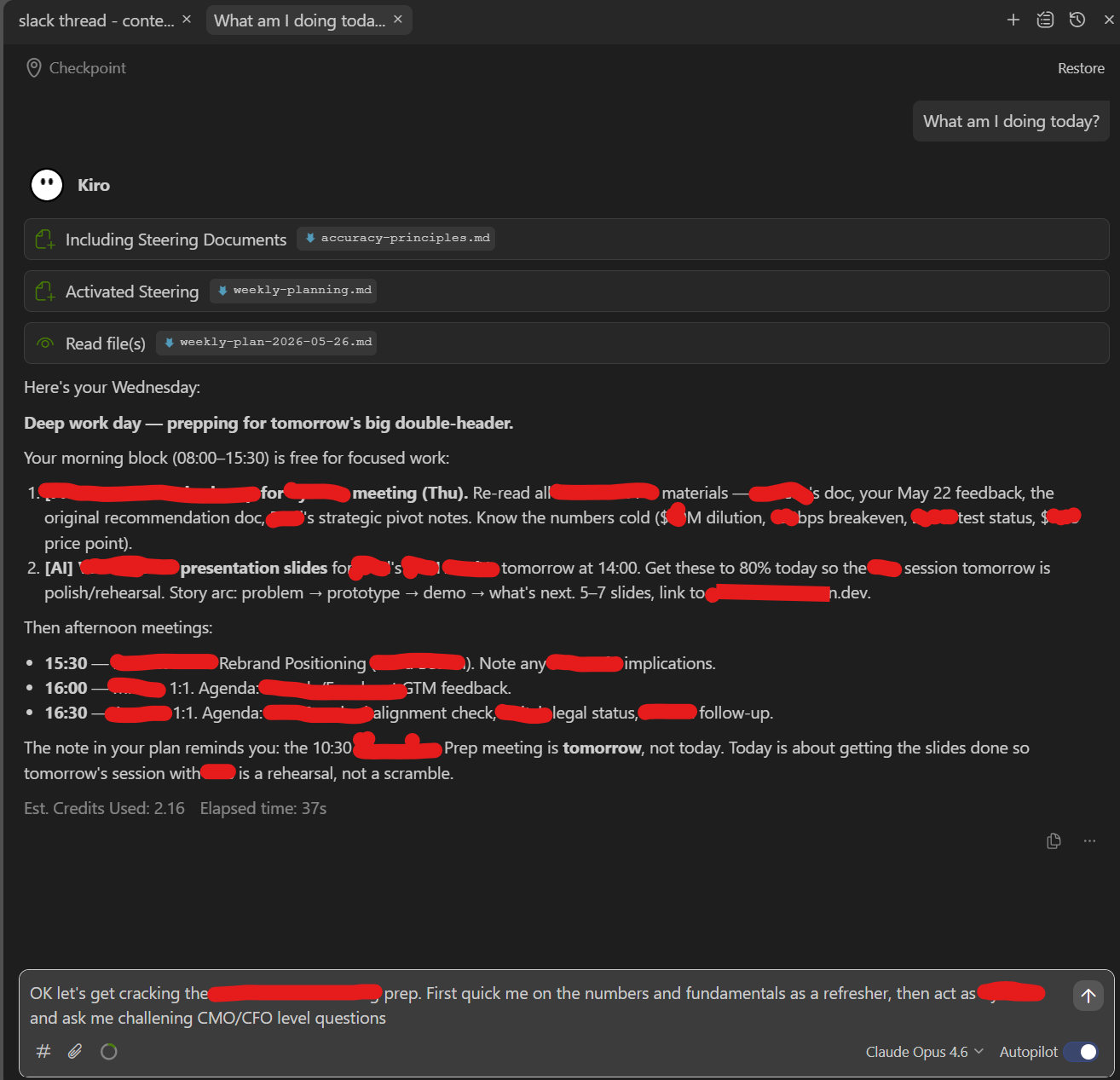
So this is how I get through a day like today. I talk to it, it listens, it connects my poorly articulated thoughts with all the context I have provided. It is the angel of my more productive nature.
I did this in Kiro IDE (from Amazon). It’s a paid tool, free at small scale. Similar tools include Cursor, Windsurf, Aider, or Visual Studio Code with extensions like Copilot or Cline. The difference from an IDE and something like ChatGPT is simple: it works directly on your computer. It doesn’t just reply, it creates folders, writes and edits files, organises information, and remembers how everything fits together. It turns conversations into a living system.
For this, we’re working with markdown (.md) files: clean, structured text that both humans and AI can understand. You don’t need to learn it; you just prompt Kiro. Kiro writes the files, organised them into folders, and refers back to them. It has files on me, on how it should work with me, on everything I’m working on. From this, it takes a pretty good stab at what I should do next, and how to get started. It can take Word docs, PDFs, slides, spreadsheets, boil them down into .md format, and save them forever. This system is future-proof, because I built it in Kiro but it lives in folders and files that be used by any AI platform. Today I’ll show you how to use it as a personal assistant. Tomorrow, you can connect it directly to other tools so it can do as much as you're comfortable with: reply to emails, order shopping, teach you to vibecode, find your god.
Kiro IDE:
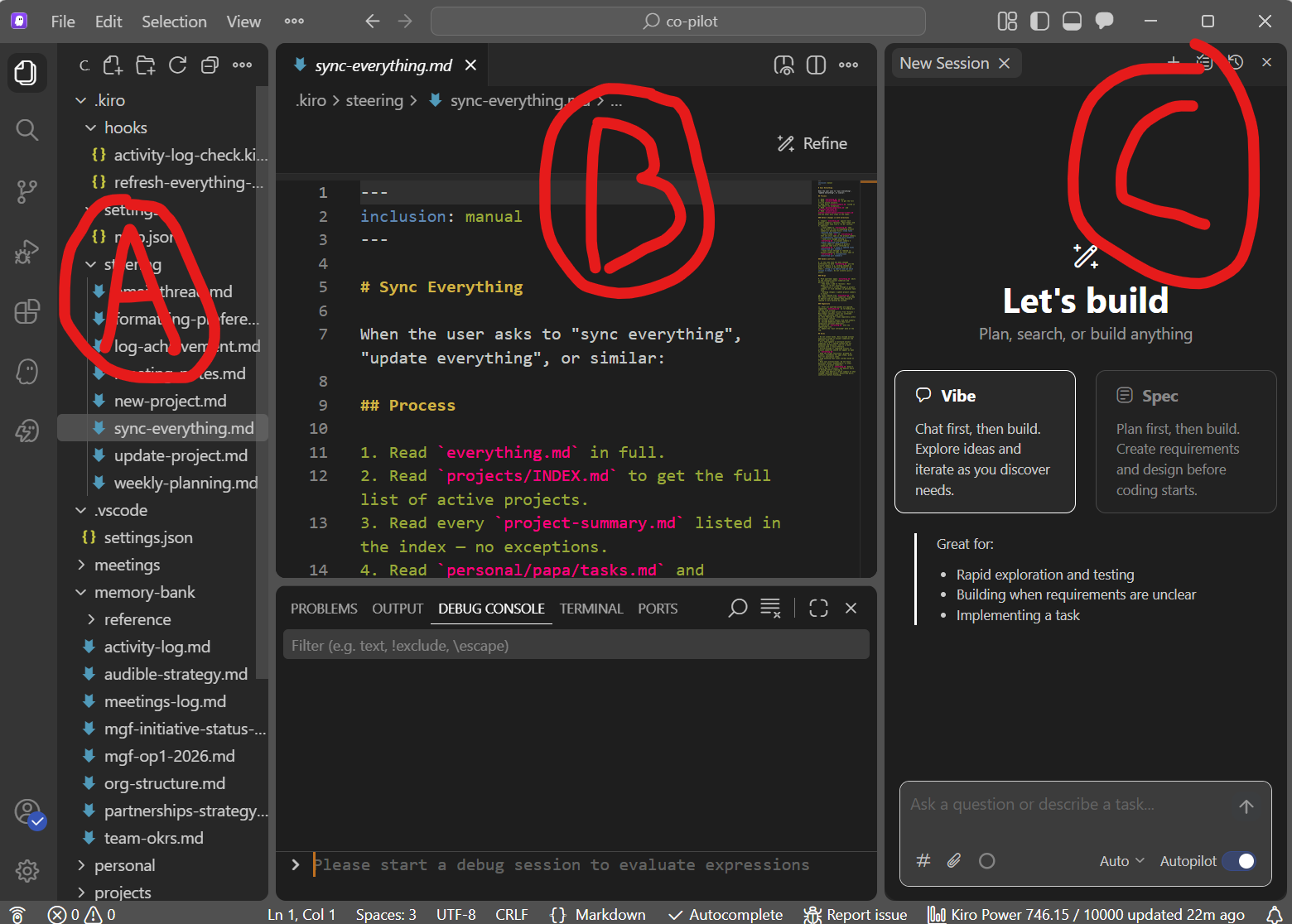
A = Files: these live on your drive/cloud. Kiro stores all context and structure here.
B = Editor: this shows the file you’ve selected, e.g. a steering file that tells Kiro how to behave.
C = Chat: this is where you work, using prompts. You describe what you want; Kiro builds it in A.
How to build your second brain
1. Create a folder
Create a new folder anywhere on your computer (or cloud storage) that you can easily access via File Explorer (Windows) or Finder (Mac). Call it something simple: second-brain, co-pilot, etc. This is where everything will live.
2. Dump your personal context (don’t overthink it)
Open a blank document and write everything about how you work and who you are. The more info the better. You could include:
- Your role and responsibilities
- Your projects
- Your team and company goals
- How you like to work (and how you don’t)
- Strengths, weaknesses, habits, quirks
- People you work with, and how you interact with them
Do this fast and unfiltered. Stream of consciousness. No editing. You can type, dictate (Windows + H / Apple Fn-D), or even write by hand and digitise later. Save this as a rough document, you’ll clean it up later.
3. Define what you want the co-pilot to do
In the same document (or a second one), write what you want this system to help you with:
- “Help me prioritise properly”
- “Turn messy threads into clear actions”
- “Stop me procrastinating on important work”
- “Prepare me for meetings”
Don’t worry about what’s realistic. Over-ask. This will be the foundation of how your co-pilot behaves.
4. Get Kiro IDE
I got it for free because I work for Amazon, so I'm not exactly sure what this looks like for normal people. Google Kiro IDE, get it. You might have to pay at some point. If you don't want to pay, or you don't want to use Kiro IDE, use something else that does the same thing.
5. Open your folder in Kiro IDE
- Open Kiro
- Go to File → Open Folder
- Select the folder you created
Then open the chat panel (the speech bubble icon in the top right) and give it a clear instruction, e.g.:
“I want to build a second brain/co-pilot. Here is context about me and what I want help with. Create a clean folder structure and convert this into markdown files. Create at least a my-context.md (about me) and a steering.md (how you should behave).”
Paste in your notes. Turn on the Autopilot' toggle underneath the chat panel. Press enter. Kiro won’t just make suggestions, it will actually create the folders and files for you. (If you would rather it asked for permission before creating anything, turn autopilot off, but this quickly gets annoying.)
6. Don’t worry about getting the structure right
Whatever Kiro creates first will not be perfect. That’s fine.
The structure (folders, files, naming) is editable, expandable and infinately fixable.
7. Test it, break it, refine it (this is the real work)
This is the most important step. Start using it immediately with real work: drop in email threads and meeting notes (with a bit more work, it can fetch these for you); ask it to create to-do lists; ask it to summarise, prioritise, challenge your thinking.
When it gets things wrong (it will), tell it what’s wrong and how you want it done instead. Then explicitly say: “Update your steering/memory so you always do it this way”.
Over time it will improve outputs, adjust file structure and build consistent behaviours. As you use the tool, you train your system.
8. Build your workflows into it
As patterns emerge, lock them in. I use:
- Daily/weekly task structure
- How I want emails processed
- How project summaries are updated
- How meetings are prepped
You can create simple commands like:
- “sync everything” → updates tasks + projects + notes
- “prep my day” → generates a to-do list
9. Get it to document itself
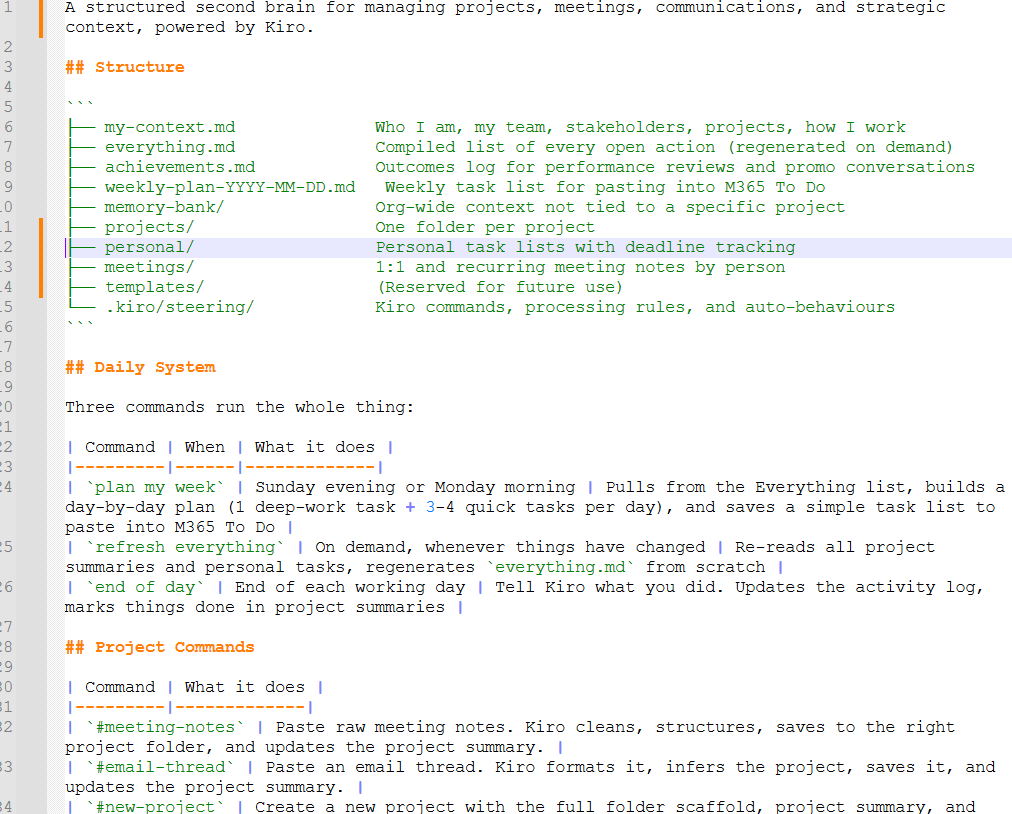
Ask it to create a README.md. This will explain your folder structure, key files, how to use the system, common commands. Keep it simple. This is your instruction manual. Kiro can keep it updated as things evolve. Mine looks like this (shown in Notepad++, a free tool that colour codes the markdown):
10. Keep using it until it becomes default
After a couple of days, you will emerge from the building phase and start relying on it. Everything important goes in. It files, connects, and remembers. Nothing falls through the cracks.